Selections
The selection framework
The select command can be used to create a selection for subsequent commands.
For example:
select foobar         # select the module foobar
delete                # delete selected objects
Normally the select command overwrites a previous selection. The commands
select -add and select -del can be used to add or remove
objects from the current selection.
The command select -clear can be used to reset the selection to the
default, which is a complete selection of everything in the current module.
This selection framework can also be used directly in many other commands.
Whenever a command has [selection] as last argument in its usage help, this
means that it will use the engine behind the select command to evaluate
additional arguments and use the resulting selection instead of the selection
created by the last select command.
For example, the command delete will delete everything in the current
selection; while delete foobar will only delete the module foobar.
If no select command has been made, then the “current selection” will be the
whole design.
Note
Many of the examples on this page make use of the show
command to visually demonstrate the effect of selections. For a more
detailed look at this command, refer to A look at the show command.
How to make a selection
Selection by object name
The easiest way to select objects is by object name. This is usually only done in synthesis scripts that are hand-tailored for a specific design.
select foobar         # select module foobar
select foo*           # select all modules whose names start with foo
select foo*/bar*      # select all objects matching bar* from modules matching foo*
select */clk          # select objects named clk from all modules
Module and design context
Commands can be executed in module/ or design/ context. Until now, all
commands have been executed in design context. The cd command can be used to
switch to module context.
In module context, all commands only effect the active module. Objects in the
module are selected without the <module_name>/ prefix. For example:
cd foo                # switch to module foo
delete bar            # delete object foo/bar

cd mycpu              # switch to module mycpu
dump reg_*            # print details on all objects whose names start with reg_

cd ..                 # switch back to design
Note: Most synthesis scripts never switch to module context. But it is a very powerful tool which we explore more in Interactive design investigation.
Selecting by object property or type
Special patterns can be used to select by object property or type. For example:
select all wires whose names start with
reg_:select w:reg_*select all objects with the attribute
foobarset:select a:foobarselect all objects with the attribute
foobarset to 42:select a:foobar=42select all modules with the attribute
blablaset:select A:blablaselect all
$addcells from the module foo:select foo/t:$add
A complete list of pattern expressions can be found in select - modify and view the list of selected objects.
Operations on selections
Combining selections
The select command is actually much more powerful than it might seem at first
glance. When it is called with multiple arguments, each argument is evaluated
and pushed separately on a stack. After all arguments have been processed it
simply creates the union of all elements on the stack. So select
t:$add a:foo will select all $add cells and all objects with the foo
attribute set:
module foobaraddsub(a, b, c, d, fa, fs, ba, bs);
  input [7:0] a, b, c, d;
  output [7:0] fa, fs, ba, bs;
  assign fa = a + (* foo *) b;
  assign fs = a - (* foo *) b;
  assign ba = c + (* bar *) d;
  assign bs = c - (* bar *) d;
endmodule
yosys> select t:$add a:foo -list
foobaraddsub/$add$foobaraddsub.v:6$3
foobaraddsub/$sub$foobaraddsub.v:5$2
foobaraddsub/$add$foobaraddsub.v:4$1
In many cases simply adding more and more stuff to the selection is an
ineffective way of selecting the interesting part of the design. Special
arguments can be used to combine the elements on the stack. For example the
%i arguments pops the last two elements from the stack, intersects them, and
pushes the result back on the stack. So select t:$add a:foo %i will
select all $add cells that have the foo attribute set:
yosys> select t:$add a:foo %i -list
foobaraddsub/$add$foobaraddsub.v:4$1
Some of the special %-codes:
%u: union of top two elements on stack – pop 2, push 1%d: difference of top two elements on stack – pop 2, push 1%i: intersection of top two elements on stack – pop 2, push 1%n: inverse of top element on stack – pop 1, push 1
See select - modify and view the list of selected objects for the full list.
Expanding selections
Listing 65 uses the Yosys non-standard {... *} syntax to set the
attribute sumstuff on all cells generated by the first assign statement.
(This works on arbitrary large blocks of Verilog code and can be used to mark
portions of code for analysis.)
module sumprod(a, b, c, sum, prod);

  input [7:0] a, b, c;
  output [7:0] sum, prod;

  {* sumstuff *}
  assign sum = a + b + c;
  {* *}

  assign prod = a * b * c;

endmodule
Selecting a:sumstuff in this module will yield the following circuit
diagram:
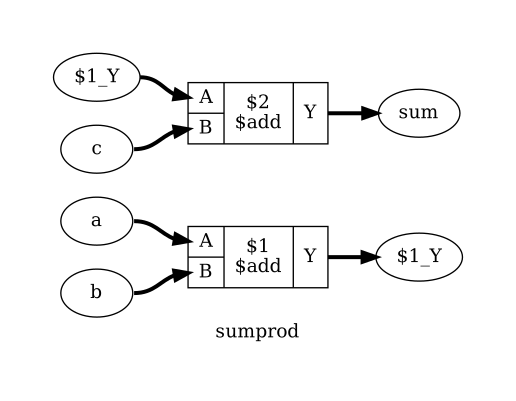
Fig. 31 Output of show a:sumstuff on Listing 65
As only the cells themselves are selected, but not the temporary wire $1_Y,
the two adders are shown as two disjunct parts. This can be very useful for
global signals like clock and reset signals: just unselect them using a command
such as select -del clk rst and each cell using them will get its
own net label.
In this case however we would like to see the cells connected properly. This can
be achieved using the %x action, that broadens the selection, i.e. for each
selected wire it selects all cells connected to the wire and vice versa. So
show a:sumstuff %x yields the diagram shown in Fig. 32:
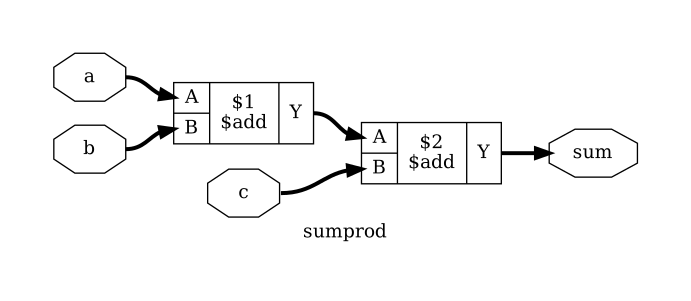
Fig. 32 Output of show a:sumstuff %x on Listing 65
Selecting logic cones
Fig. 32 shows what is called the input cone of sum, i.e.
all cells and signals that are used to generate the signal sum. The %ci
action can be used to select the input cones of all object in the top selection
in the stack maintained by the select command.
As with the %x action, these commands broaden the selection by one “step”.
But this time the operation only works against the direction of data flow. That
means, wires only select cells via output ports and cells only select wires via
input ports.
The following sequence of diagrams demonstrates this step-wise expansion:
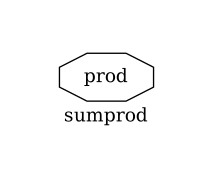
Fig. 33 Output of show prod on Listing 65
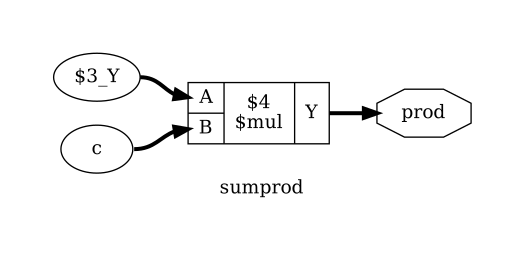
Fig. 34 Output of show prod %ci on Listing 65
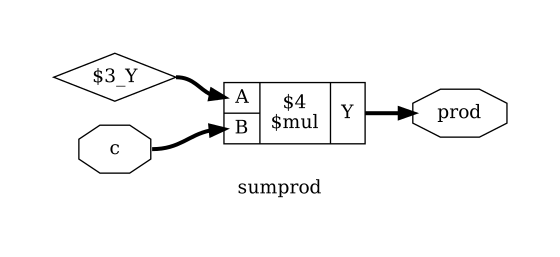
Fig. 35 Output of show prod %ci %ci on Listing 65
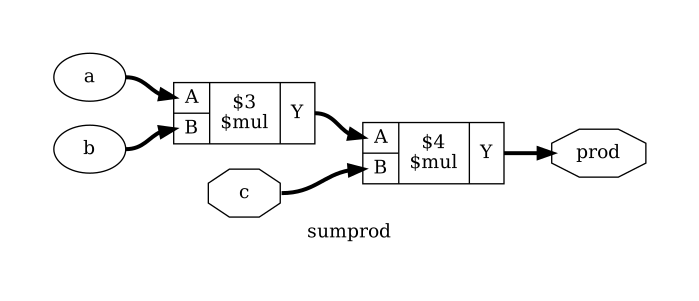
Fig. 36 Output of show prod %ci %ci %ci on Listing 65
Notice the subtle difference between show prod %ci and
show prod %ci %ci. Both images show the $mul cell driven by some
inputs $3_Y and c. However it is not until the second image, having
called %ci the second time, that show is able to distinguish between
$3_Y being a wire and c being an input. We can see this better with the
dump command instead:
  attribute \src "sumprod.v:4.21-4.25"
  wire width 8 output 5 \prod

  attribute \src "sumprod.v:10.17-10.26"
  cell $mul $mul$sumprod.v:10$4
    parameter \Y_WIDTH 8
    parameter \B_WIDTH 8
    parameter \B_SIGNED 0
    parameter \A_WIDTH 8
    parameter \A_SIGNED 0
    connect \Y \prod
    connect \B \c
    connect \A $mul$sumprod.v:10$3_Y
  end
  attribute \src "sumprod.v:4.21-4.25"
  wire width 8 output 5 \prod

  attribute \src "sumprod.v:3.21-3.22"
  wire width 8 input 3 \c

  attribute \src "sumprod.v:10.17-10.22"
  wire width 8 $mul$sumprod.v:10$3_Y

  attribute \src "sumprod.v:10.17-10.26"
  cell $mul $mul$sumprod.v:10$4
    parameter \Y_WIDTH 8
    parameter \B_WIDTH 8
    parameter \B_SIGNED 0
    parameter \A_WIDTH 8
    parameter \A_SIGNED 0
    connect \Y \prod
    connect \B \c
    connect \A $mul$sumprod.v:10$3_Y
  end
When selecting many levels of logic, repeating %ci over and over again can
be a bit dull. So there is a shortcut for that: the number of iterations can be
appended to the action. So for example the action %ci3 is identical to
performing the %ci action three times.
The action %ci* performs the %ci action over and over again until it has
no effect anymore.
Advanced logic cone selection
In most cases there are certain cell types and/or ports that should not be
considered for the %ci action, or we only want to follow certain cell types
and/or ports. This can be achieved using additional patterns that can be
appended to the %ci action.
Lets consider Listing 68. It serves no purpose other than being a
non-trivial circuit for demonstrating some of the advanced Yosys features. This
code is available in docs/source/code_examples/selections of the Yosys
source repository.
module memdemo(clk, d, y);

input clk;
input [3:0] d;
output reg [3:0] y;

integer i;
reg [1:0] s1, s2;
reg [3:0] mem [0:3];

always @(posedge clk) begin
    for (i = 0; i < 4; i = i+1)
        mem[i] <= mem[(i+1) % 4] + mem[(i+2) % 4];
    { s2, s1 } = d ? { s1, s2 } ^ d : 4'b0;
    mem[s1] <= d;
    y <= mem[s2];
end

endmodule
The script memdemo.ys is used to generate the images included here.
Let’s look at the first section:
This loads Listing 68 and synthesizes the included module. Note that
this code can be copied and run directly in a Yosys command line session,
provided memdemo.v is in the same directory. We can now change to the
memdemo module with cd memdemo, and call show to see the diagram in
Fig. 37.
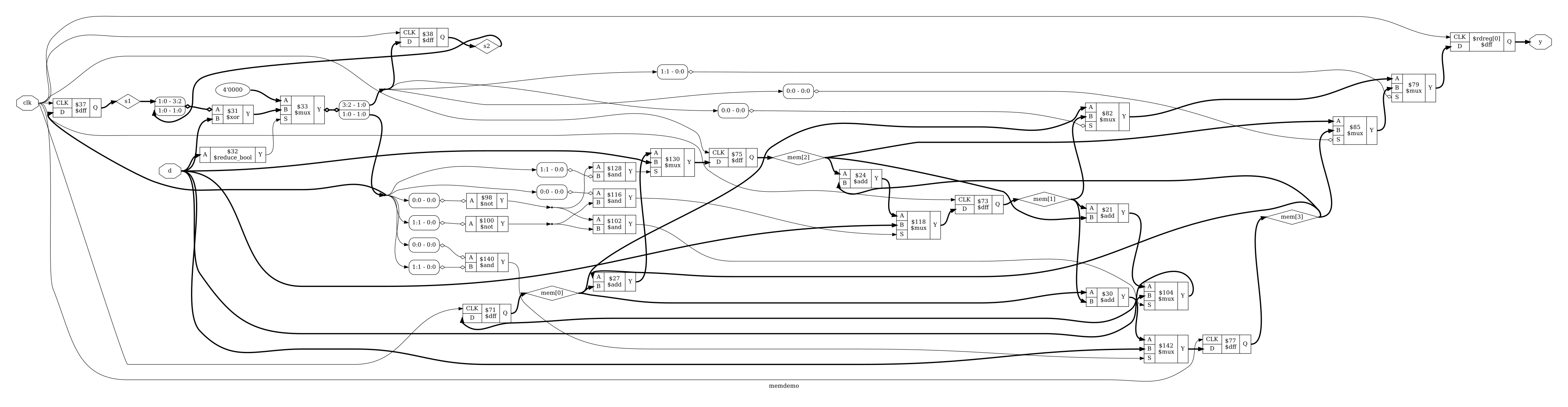
Fig. 37 Complete circuit diagram for the design shown in Listing 68
There’s a lot going on there, but maybe we are only interested in the tree of
multiplexers that select the output value. Let’s start by just showing the
output signal, y, and its immediate predecessors. Remember Selecting logic
cones from above, we can use show y %ci2:
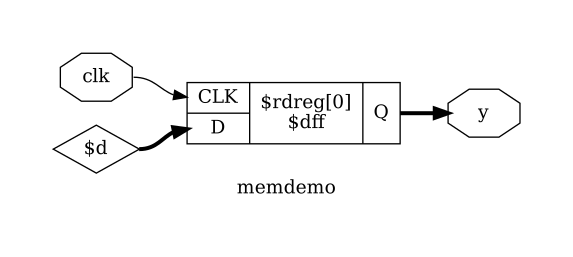
Fig. 38 Output of show y %ci2
From this we would learn that y is driven by a $dff cell, that y is
connected to the output port Q, that the clk signal goes into the
CLK input port of the cell, and that the data comes from an auto-generated
wire into the input D of the flip-flop cell (indicated by the $ at the
start of the name). Let’s go a bit further now and try show y %ci5:
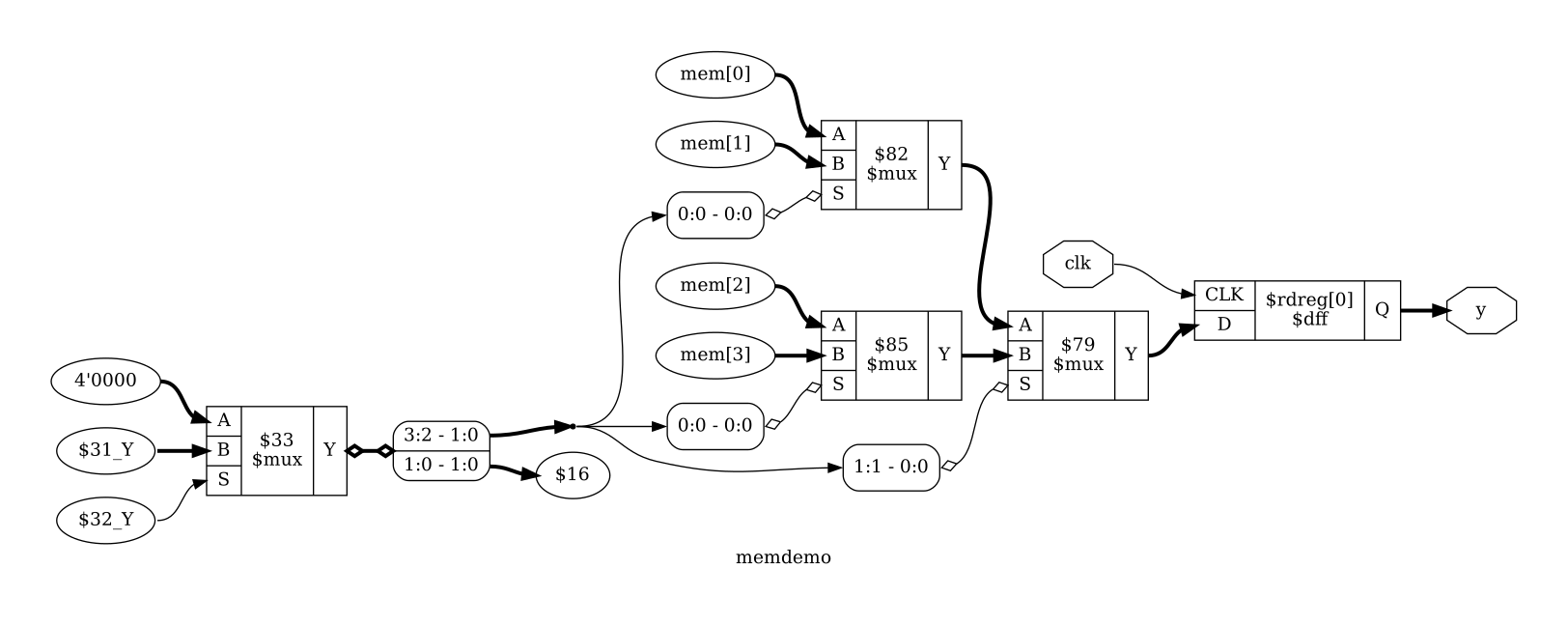
Fig. 39 Output of show y %ci5
That’s starting to get a bit messy, so maybe we want to ignore the mux select
inputs. To add a pattern we add a colon followed by the pattern to the %ci
action. The pattern itself starts with - or +, indicating if it is an
include or exclude pattern, followed by an optional comma separated list of cell
types, followed by an optional comma separated list of port names in square
brackets. In this case, we want to exclude the S port of the $mux cell
type with show y %ci5:-$mux[S]:
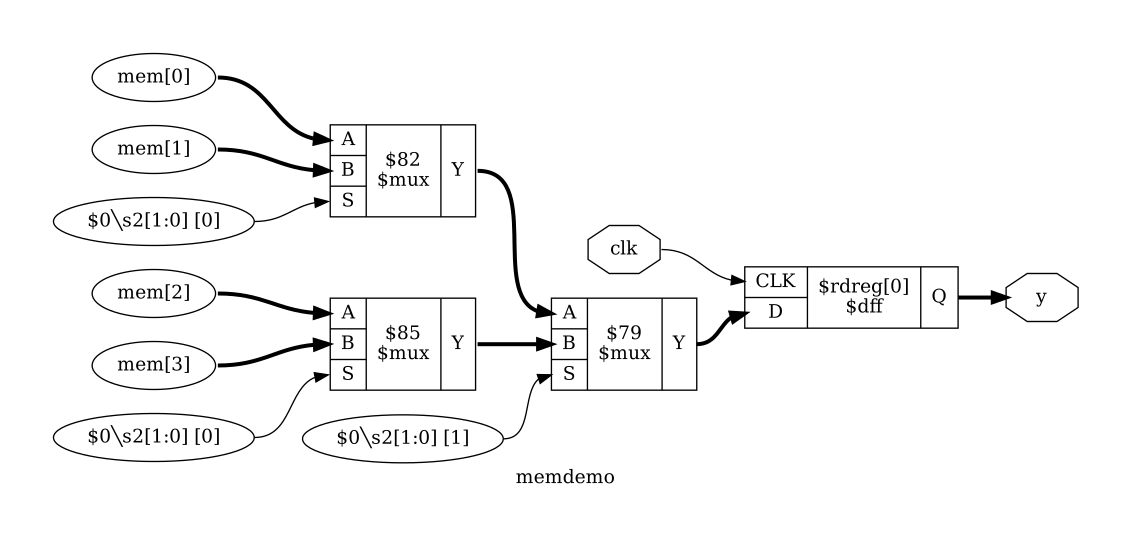
Fig. 40 Output of show y %ci5:-$mux[S]
We could use a command such as show y %ci2:+$dff[Q,D]
%ci*:-$mux[S]:-$dff in which the first %ci jumps over the initial d-type
flip-flop and the 2nd action selects the entire input cone without going over
multiplexer select inputs and flip-flop cells:
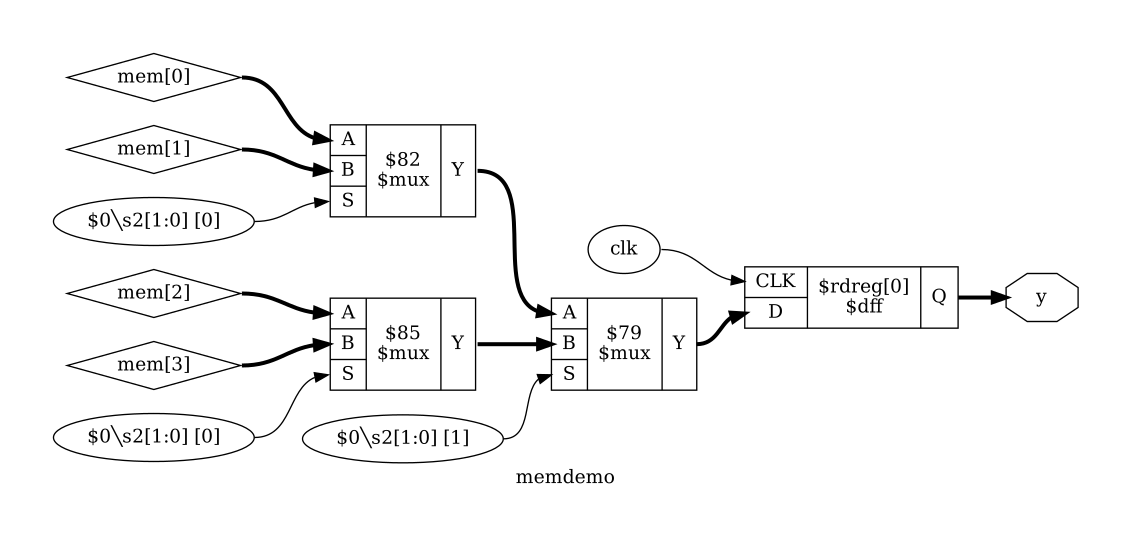
Fig. 41 Output of show y %ci2:+$dff[Q,D] %ci*:-$mux[S]:-$dff
Or we could use show y %ci*:-[CLK,S]:+$dff:+$mux instead, following
the input cone all the way but only following $dff and $mux cells, and
ignoring any ports named CLK or S:
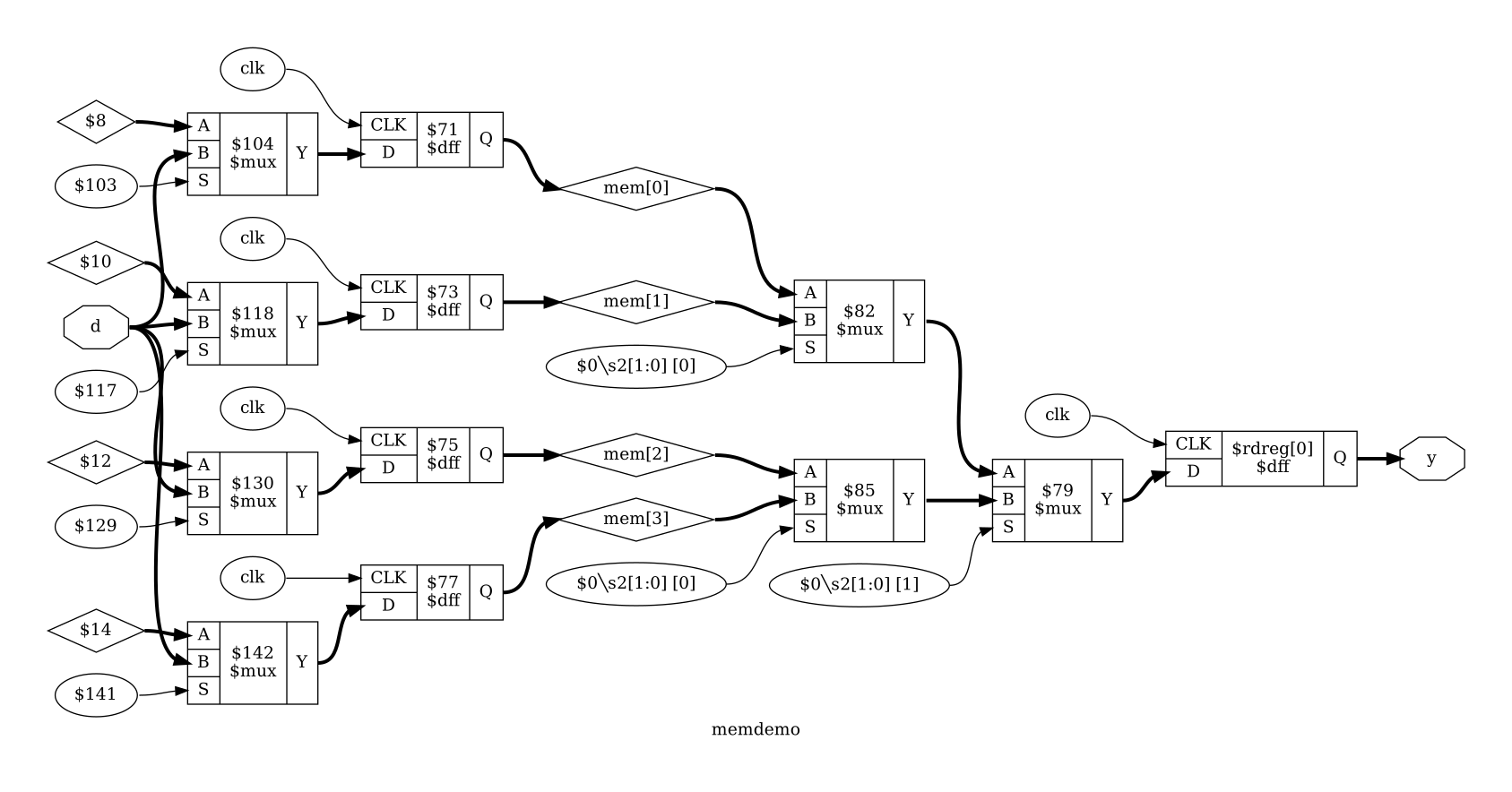
Fig. 42 Output of show y %ci*:-[CLK,S]:+$dff,$mux
Similar to %ci exists an action %co to select output cones that accepts
the same syntax for pattern and repetition. The %x action mentioned
previously also accepts this advanced syntax.
These actions for traversing the circuit graph, combined with the actions for
boolean operations such as intersection (%i) and difference (%d) are
powerful tools for extracting the relevant portions of the circuit under
investigation.
Again, see select - modify and view the list of selected objects for full documentation of these expressions.
Incremental selection
Sometimes a selection can most easily be described by a series of add/delete
operations. As mentioned previously, the commands select -add and
select -del respectively add or remove objects from the current
selection instead of overwriting it.
select -none            # start with an empty selection
select -add reg_*       # select a bunch of objects
select -del reg_42      # but not this one
select -add state %ci   # and add more stuff
Within a select expression the token % can be used to push the previous
selection on the stack.
select t:$add t:$sub    # select all $add and $sub cells
select % %ci % %d       # select only the input wires to those cells
Storing and recalling selections
The current selection can be stored in memory with the command select -set
<name>. It can later be recalled using select @<name>. In fact, the
@<name> expression pushes the stored selection on the stack maintained by
the select command. So for example select @foo @bar %i will select
the intersection between the stored selections foo and bar.
In larger investigation efforts it is highly recommended to maintain a script that sets up relevant selections, so they can easily be recalled, for example when Yosys needs to be re-run after a design or source code change.
The history command can be used to list all recent interactive commands. This
feature can be useful for creating such a script from the commands used in an
interactive session.
Remember that select expressions can also be used directly as arguments to most commands. Some commands also accept a single select argument to some options. In those cases selection variables must be used to capture more complex selections.
Example code from docs/source/code_examples/selections:
module test(clk, s, a, y);
    input clk, s;
    input [15:0] a;
    output [15:0] y;
    reg [15:0] b, c;

    always @(posedge clk) begin
        b <= a;
        c <= b;
    end

    wire [15:0] state_a = (a ^ b) + c;
    wire [15:0] state_b = (a ^ b) - c;
    assign y = !s ? state_a : state_b;
endmodule
read_verilog select.v
prep -top test

cd test
select -set cone_a state_a %ci*:-$dff
select -set cone_b state_b %ci*:-$dff
select -set cone_ab @cone_a @cone_b %i
show -prefix select -format dot -notitle \
     -color red @cone_ab -color magenta @cone_a \
     -color blue @cone_b
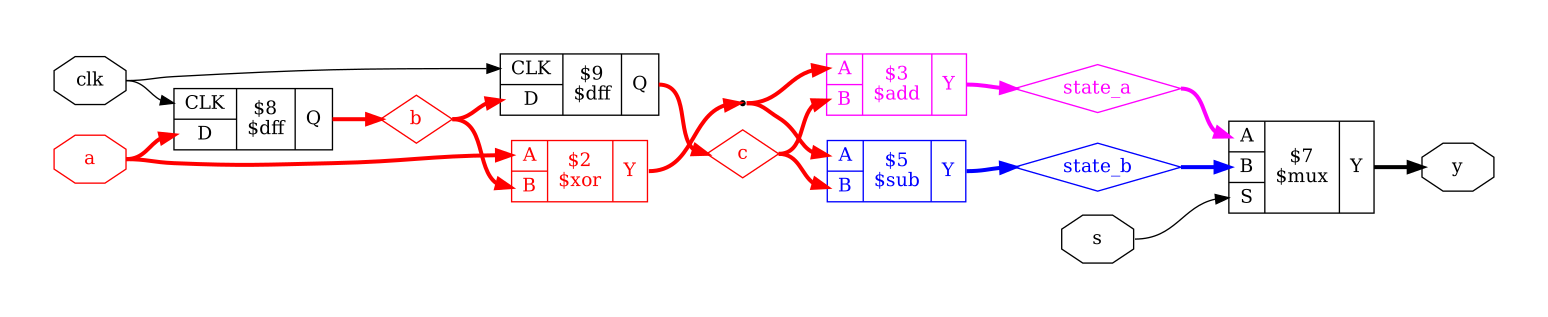
Fig. 43 Circuit diagram produced by Listing 71